
TDLR TABS Number step-by-step guide
Get your TABS Number thru Registration at TDLR
Register your project with the Texas Department of Licensing and Regulation (TDLR) and obtain a TABS Project Number for permitting purposes. After your project has a TABS Number email your permit drawings in (PDF format) to ACCESSplanreview for the TAS Plan Review.
NEW September 2025: The TDLR Texas Architectural Barriers online System (TABS) has a new message with 2 new requirements. You will be unable to complete the online registration process without the help of the owner of the property.
TDLR Project Registration (TABS) link:
NOTICE:
All registered projects will now require the County Appraisal District (CAD) number and the CAD document to be uploaded to TABS. Along with the CAD number and document, the Limited Liability Ownership (LLO) form will be required to be completed in full and uploaded to TABS when the building owner is a Limited Liability Corporation (LLC), Limited Liability Partnership (LLP) or Limited Partnership (LP). With an LLC, LLP or LP, a copy of the Articles of Formation (AOF) or copy of the Texas Secretary of State (SOS) document must also be uploaded.
The above documents must be available for upload at the time of registration OR at the time of updating an existing project, please be prepared with the (correct) required documents to upload to avoid delays.
WARNING:
False or misleading information provided when submitting registration forms or project information to the Department is a violation of Texas Administrative Code 68.12(e).
Would you like to print the entire instructions and all forms now???
This is a 22-page PDF that contains the step-by-step registration page along with all attachments compiled into one document.
CLICK on button left to open file for download – TABs Number ACCESSplanreview.pdf
Step 1: To register your project, visit the TDLR Texas Architectural Barriers online System (TABS). You’ll receive a TDLR Project Number, which must be included with your construction documents to obtain a city permit.
Click the link below to register your project on the TDLR site. A new window will open for registration—we recommend switching back and forth to our website for guidance as you complete each step.
TDLR Project Registration (TABS) link:

Kathy Villarreal RAS #1209
Call me for assistance at 972-429-9096
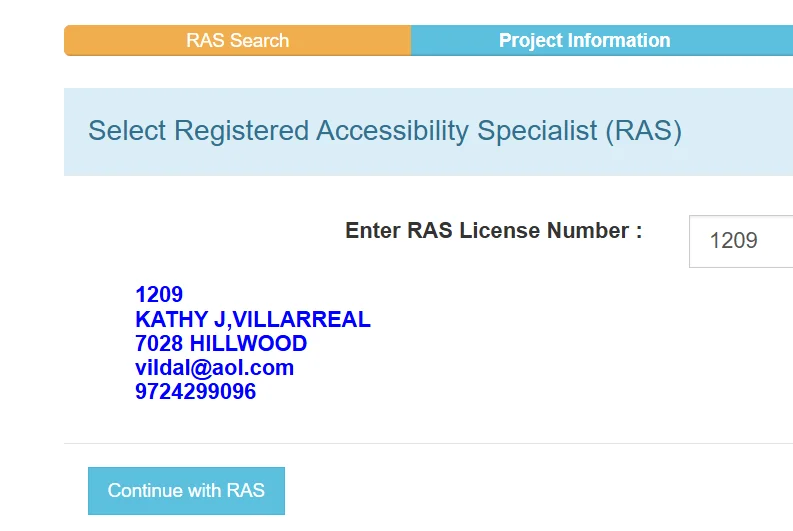
When asked to select a Registered Accessibility Specialist (RAS), choose RAS #1209 Kathy Villarreal.
STEP 2: Create a user account on TDLR’s website
REGISTER as a new user with your email address. SAVE your login details, since you get one dashboard per email. This dashboard will track the status of ALL of your TDLR registered projects and also lets you upload plans.

VERIFY LOG-IN: Once your user name (email) is next to the person icon in the upper right corner you are logged into TDLR
STEP 3: Download this form – use RAS 1209 Kathy Villarreal
This is a link to a form to assist you with gathering all of the information you will need for online registration. Most individuals share this form with the Landlord, Tenant and Designer until this information has been gathered. Once you have completed the form you should be ready to register your project online.
CLICK on button left to open file for download – TDLR Online Registration AB005 RAS 1209.
IT'S THE LAW - ELIMINATION OF ARCHITECTURAL BARRIERS LAW
Architectural Barriers Act, codified as Chapter 469, of the Texas Government Code
Administrative Rule 68.50: If your project’s total estimated cost is less than $50,000.00, you are not required to submit the project to the Department for registration and review, however, the project is still required to comply with the Texas Accessibility Standards.
Projects with costs of $50,000 or more are required to submit a full set of construction documents in accordance with Administrative Rule 68.50.
Start the TDLR Registration Process
STEP 4: Completing the TDLR Database record creates the TDLR TABs Number
After registering as a user, you can register your first TDLR project.
Reference Note: When you come back for your next project go to the Projects menu and select Register New Project.

STEP 5: Project Cost
The website will ask for the project cost. This is defined by the state: Estimated Construction Cost—Includes all costs for construction of a project except site acquisition, architectural, engineering and consulting fees, furniture, and equipment unless the equipment is part of the mechanical, electrical, or plumbing systems.
Select RAS 408 or RAS 1209
STEP 6: Select the Registered Accessibility Specialist (RAS)
Need help with submittals or process requirements? If this is your first TABs number select RAS 1209 Kathy Villarreal. For guidance from an experienced design professional, select RAS 408 John Villarreal. They both bring 34 years of combined licensed experience in Texas Accessibility Standards. Se Habla Espanol – John Villarreal

PRINT VERSION OF THESE INSTRUCTIONS
This is a 22-page PDF that contains the step-by-step registration page along with all attachments compiled into one document.
CLICK on button left to open file for download – TABs Number ACCESSplanreview.pdf
When asked to select a Registered Accessibility Specialist (RAS), choose RAS #1209 Kathy Villarreal.
ONLINE PROJECT REGISTRATION
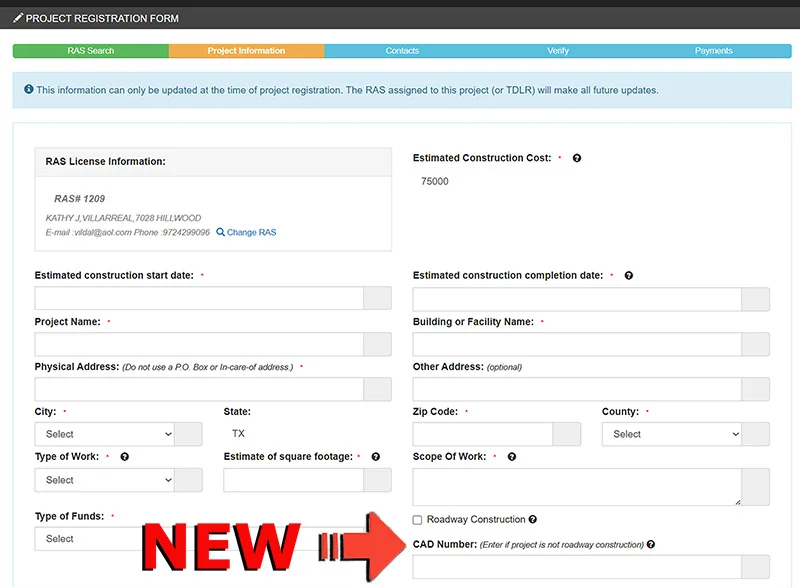
Click on TDLR page above for the PDF instructions.
first WEB SEARCH is REQUIRED
Save document to PDF for uploading.
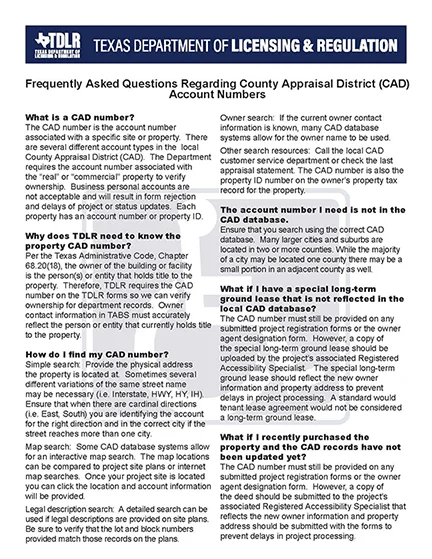
Each of the 254 counties in Texas has an appraisal district that keeps ownership records for taxpayers.
The CAD number is the account number associated with a specific site or property. There are several different account types in the local County Appraisal District (CAD). The Department requires the account number associated with the “real” or “commercial” property number to verify ownership. Business personal accounts are not acceptable and will result in form rejection and delays of project or status updates. Each property has an account number or property ID – this is the number you will enter in TDLR project registration.
> TDLR Video Link – go to 1:24
Save your CAD record to a PDF file for registration!
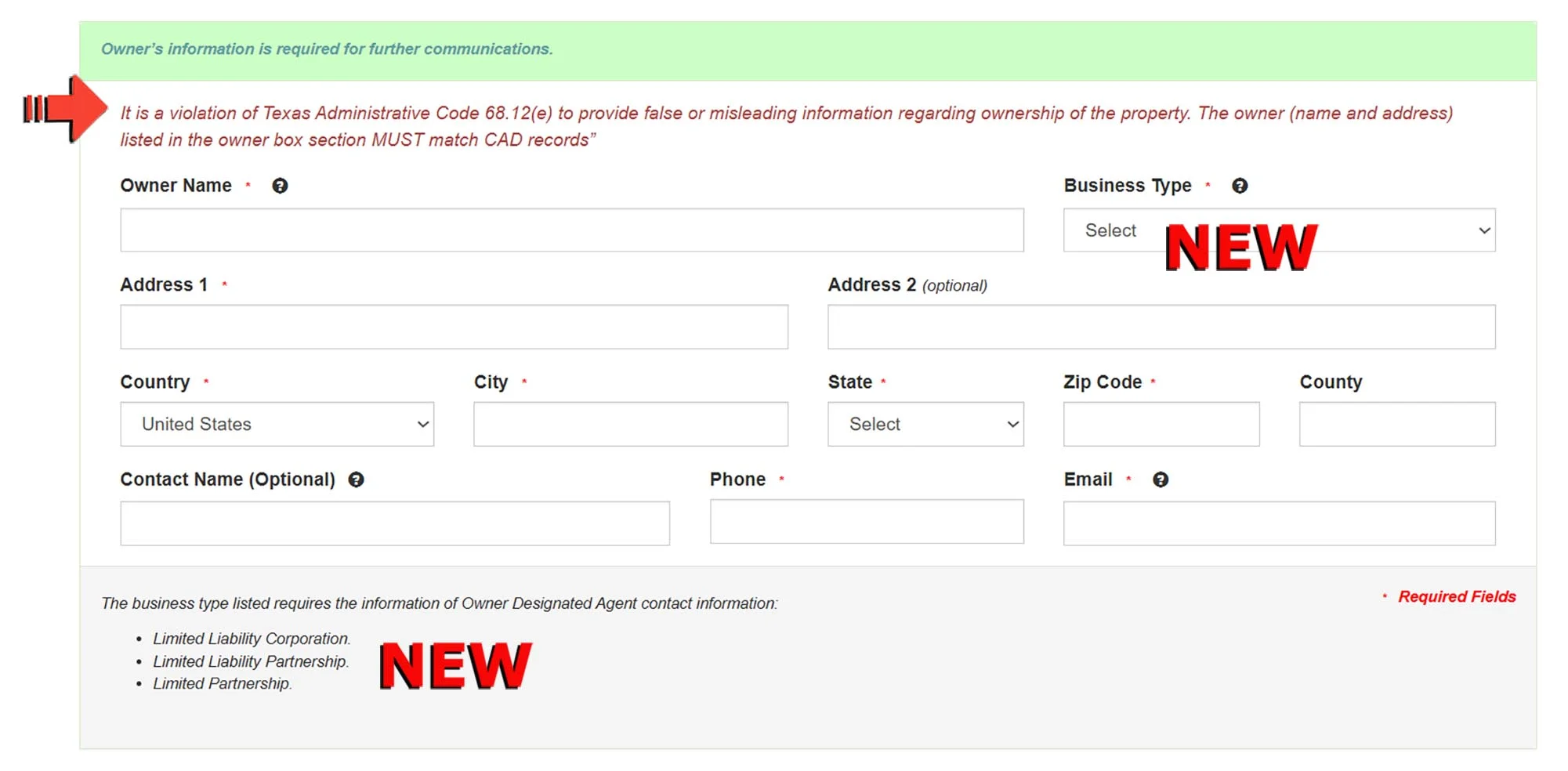
The OWNER NAME Field must match CAD
he TABS registration process now also incorporates information about the type of owner of the property.
A new required field asking for “Business Type” must be filed in at the time of registration. If the field indicates that the property owner is a Limited Liability Corporations (LLC), Limited Liability Partnership (LLP), or Limited Partnership (LP), TABS will require that the parent or umbrella entity responsible for the owning entity be entered in the Owner’s Designated Agent Contact information section. A completed (LLO) form must be on file

Click button to open section

Complete: OWNER’S DESIGNATED AGENT with the Umbrella Entity responsible for the owning entity OR repeat the LLC owner information (TDLR is working on this right now)
TABS will require that the parent or umbrella entity responsible for the owning entity be entered in the Owner’s Designated Agent Contact information section. A completed (LLO) form must be on file.

OWNER’S DESIGNATED AGENT FORM is required for a Landlord or Tenant.
second
Documents from the Property Owner are required!
Obtain PDF document for uploading.
A NEW FORM is required after registration – LIMITED LIABILITY FORM – (LLO) EAB247N
LLO EAB247N form – LIMITED LIABILITY FORM – (LLO) EAB247N
A Limited Liability Ownership (LLO) EAB247N form is required to be completed in full and submitted because the building owner is a Limited Liability Corporation (LLC), Limited Liability Partnership (LLP) or Limited Partnership (LP). A copy of the Articles of Formation (AOF) or copy of the Texas Secretary of State (SOS) document is also required. The completed LIMITED LIABILITY OWNERSHIP FORM LLO EAB247N eab247n-limited-liability-ownership-form-TDLR and A copy of the Articles of Formation (AOF) or copy of the Texas Secretary of State (SOS) document is also required to submit to the RAS or TDLR.
Please review the form and TDLR Step by Step instructions.
CLICK on button left to open file for download – TDLR LLO EAB247N.pdf
Articles of Formation (AOF) or copy of the Texas Secretary of State (SOS) document must be uploaded
AFTER PROJECT REGISTRATION: Owner’s Designated Agent FORM
If an Agent is designated for a landlord, architect or tenant, an Owner Agent Designation Form must be filled out and uploaded to the project once a project number is assigned. The form can be found here: Download Owner Agent Designation Form.
CLICK on button left to open file for download – TDLR Owner-Agent-Designation-Form-EAB243N 2023.pdf
Email 2 PDF Forms -
Owner-Agent-Designation-Form-EAB243N 2023.pdf (when required) and LLO EAB247N form – LIMITED LIABILITY FORM (required WHEN the property owner is an LLC, LPC or LP)
accessplanreview@aol.com
STEP 7: CONFIRM all Provided Information
NOTICE: All information entered for the filing of this project will be immediately visible to the public through https://www.tdlr.texas.gov/TABS and https://www.tdlr.texas.gov/TABS/Search. By clicking “Confirm Project Registration”, below, you are acknowledging that the information you will enter will be available to the public.
STEP 8: Pay the $175.00 registration fee to the state
Please note: The $175 payment covers only the TDLR project registration fee. This does not include the cost of your TAS Plan Review or final State Accessibility Inspection.
Once your Texas Accessibility Standards (TAS) project number has been issued, your permit drawings must be reviewed through a TAS Plan Review. The fees for both the plan review and the required state inspection are paid directly to your RAS at ACCESSplanreview.
Fee Information: Our combined accessibility review and inspection services start at $890.00 for simple tenant finish-outs (not including travel). Fees can also be estimated at anytime including prior to permitting.
Important Reminder: The TAS Plan Review is most valuable when completed before construction begins, as this allows us to help prevent accessibility violations.
STEP 9: Follow the steps to have your TAS Plan Review performed by ACCESSplanreview
Please click on the link below to go to our TAS Plan Review page.
Email PDF drawings
We will need the Permit Set of Drawings in PDF
accessplanreview@aol.com
TAS Plan Review
The TAS Plan Review is performed right after registration. This is a written state report filed with TDLR for compliance.
Pay Fees to ACCESSplanreview
We accept: Check, Zelle, Credit Card or ACH to ACCESSplanreview
Contact Info
Call
972-429-9096
accessplanreview@aol.com
copy: accessplanreview@aol.com
DFW Metroplex Home
Secondary office in McAllen TX